Connecting with a Third-Party Tool (Cyberduck)
This page is for users.
Connecting to a Bucket with Credentials
In the bucket list, select the bucket you want to connect to, and click Connect on the right to see the connection details.

Follow the bucket connection guide to connect. This document walks through Cyberduck as an example.
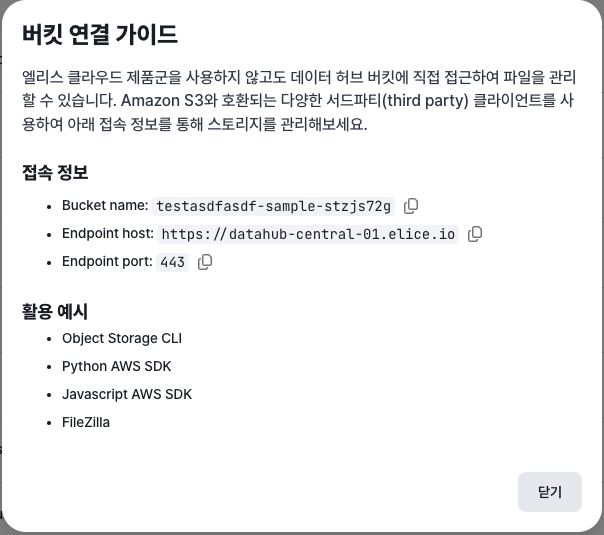
As mentioned above, you can use any third-party tool that supports the S3 interface. We recommend checking in advance that your tool supports S3.
Cyberduck
Cyberduck is a free FTP client that supports S3. It runs on Windows and macOS.
As of October 11, 2024 the latest Cyberduck version is 9.0.2, and Data Hub is supported from version 8.7.1 onward.
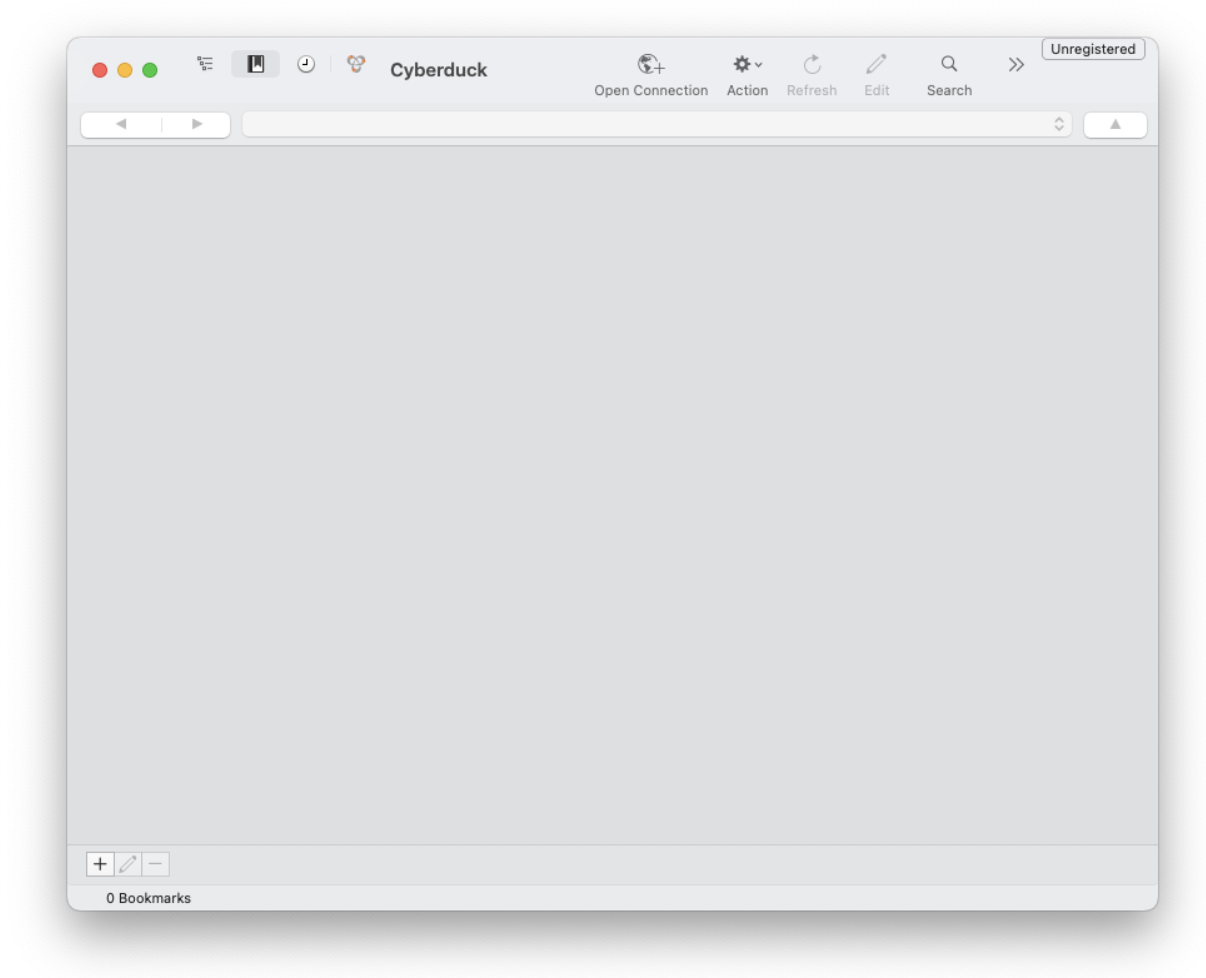
After installing and launching Cyberduck, you'll see a screen like the one below. Click the "+" button at the bottom to create a new connection.
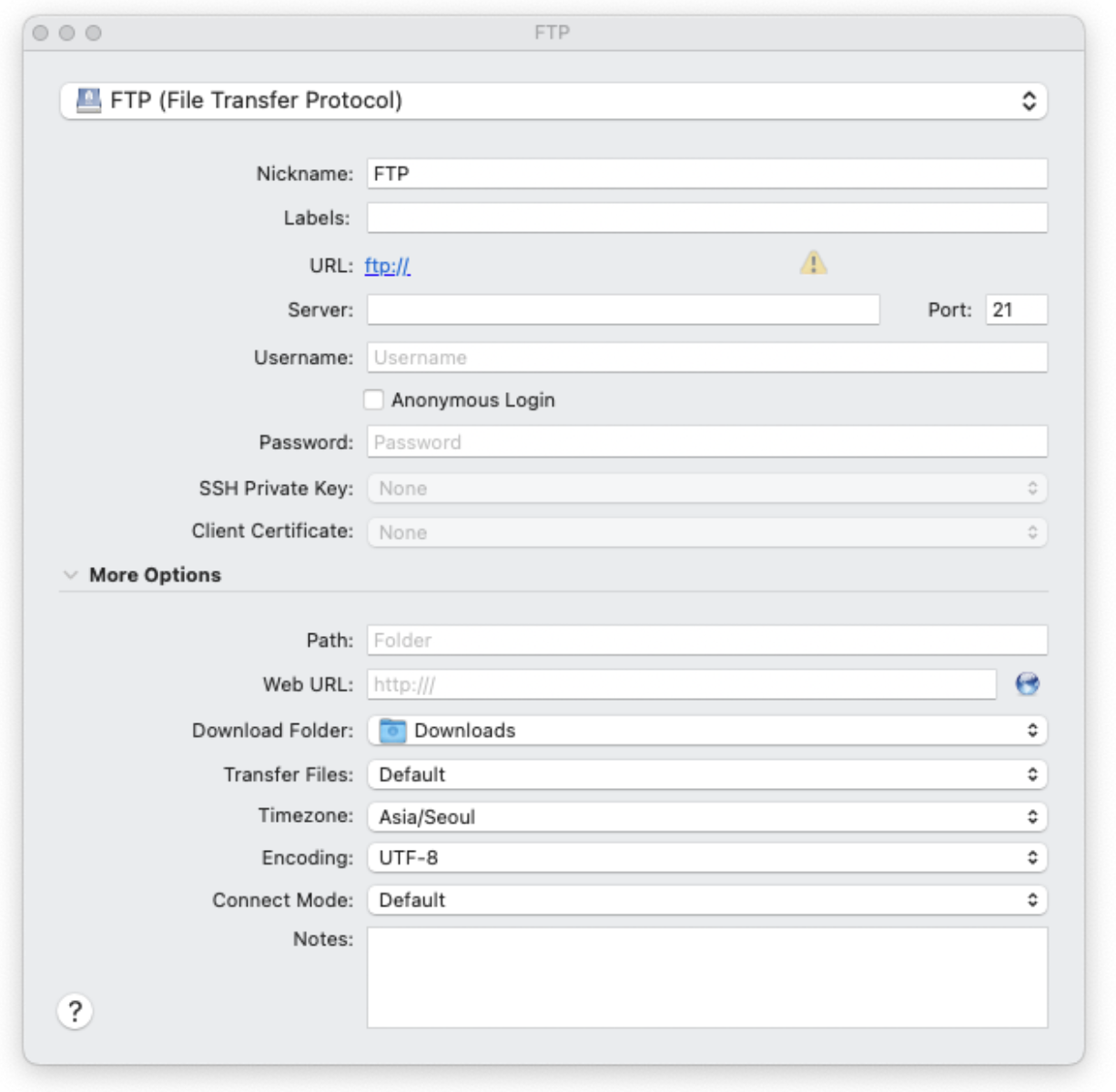
New connections default to FTP. The dropdown at the top shows the available connection options.
Opening the dropdown shows a screen like the one below. Right after installation there may be no S3 configuration. Click "More options" to bring in the S3 configuration.
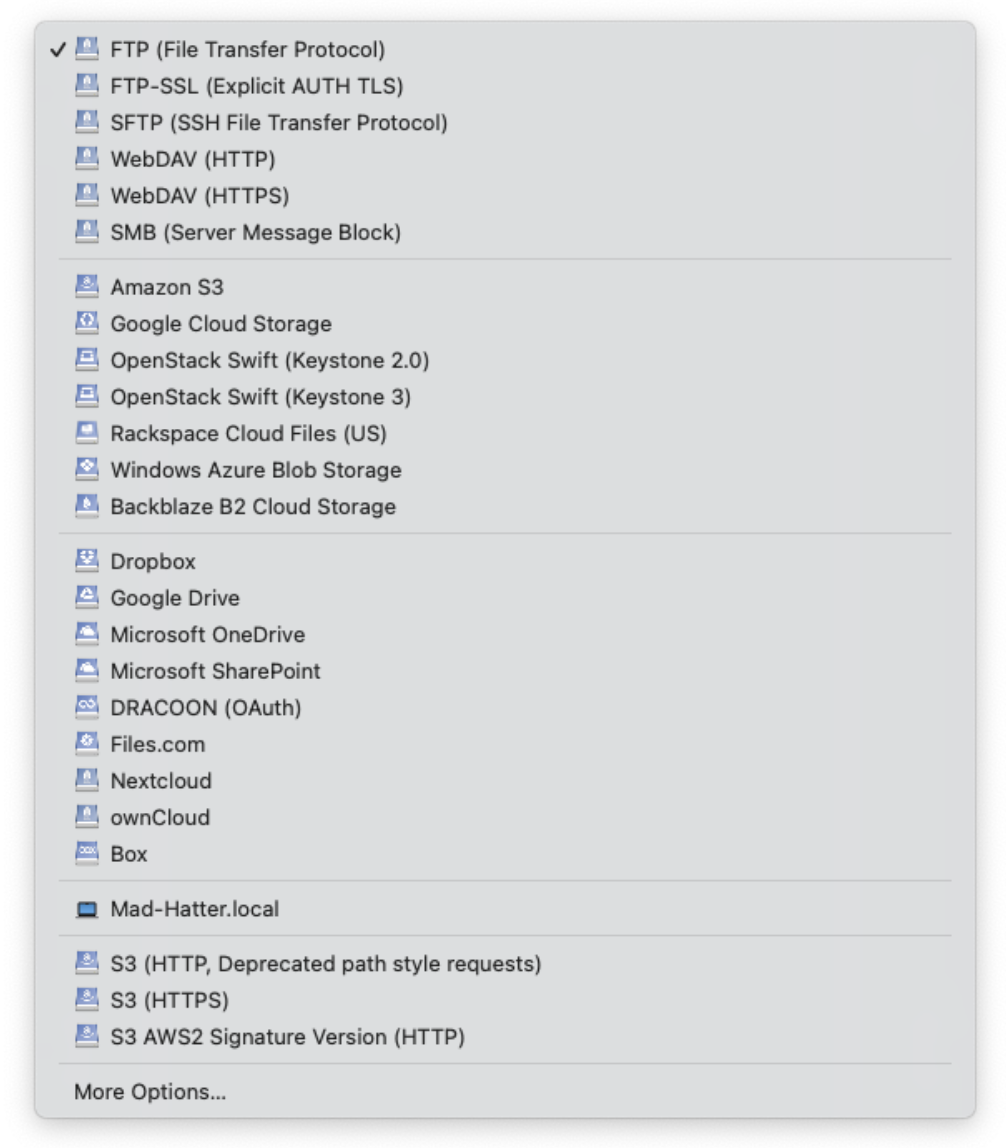
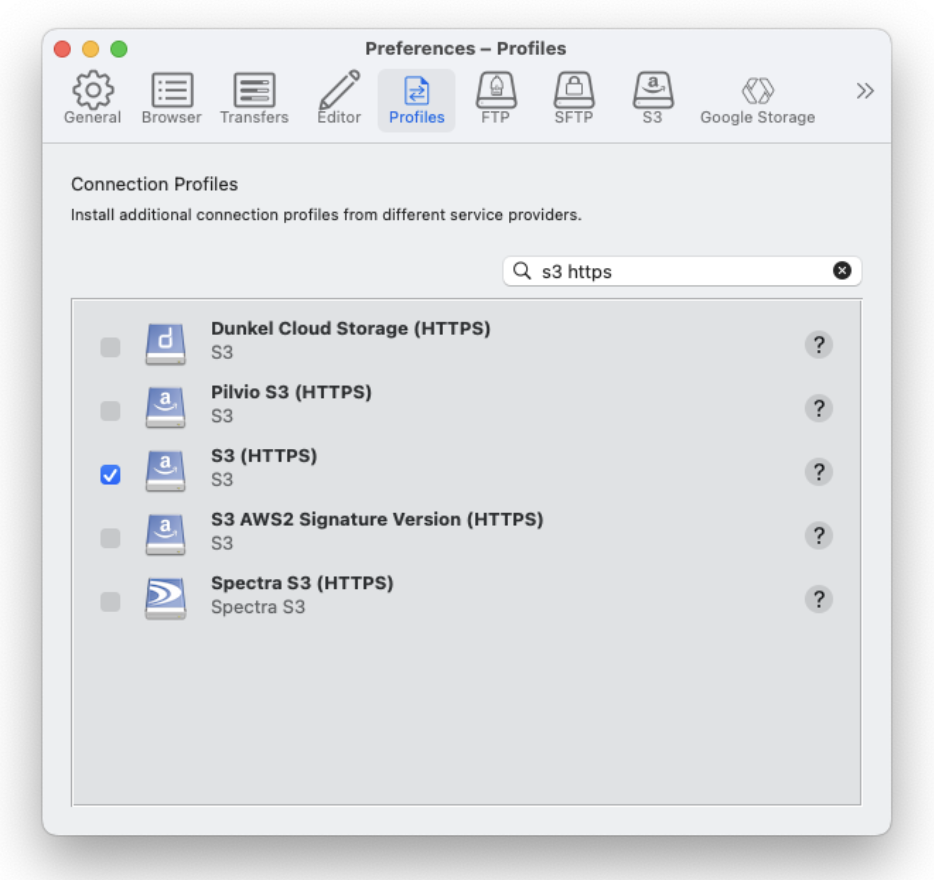
Search "S3 https", find "S3 (HTTPS)", and check the checkbox as shown. Close the screen without saving — the option will appear in the connection list.
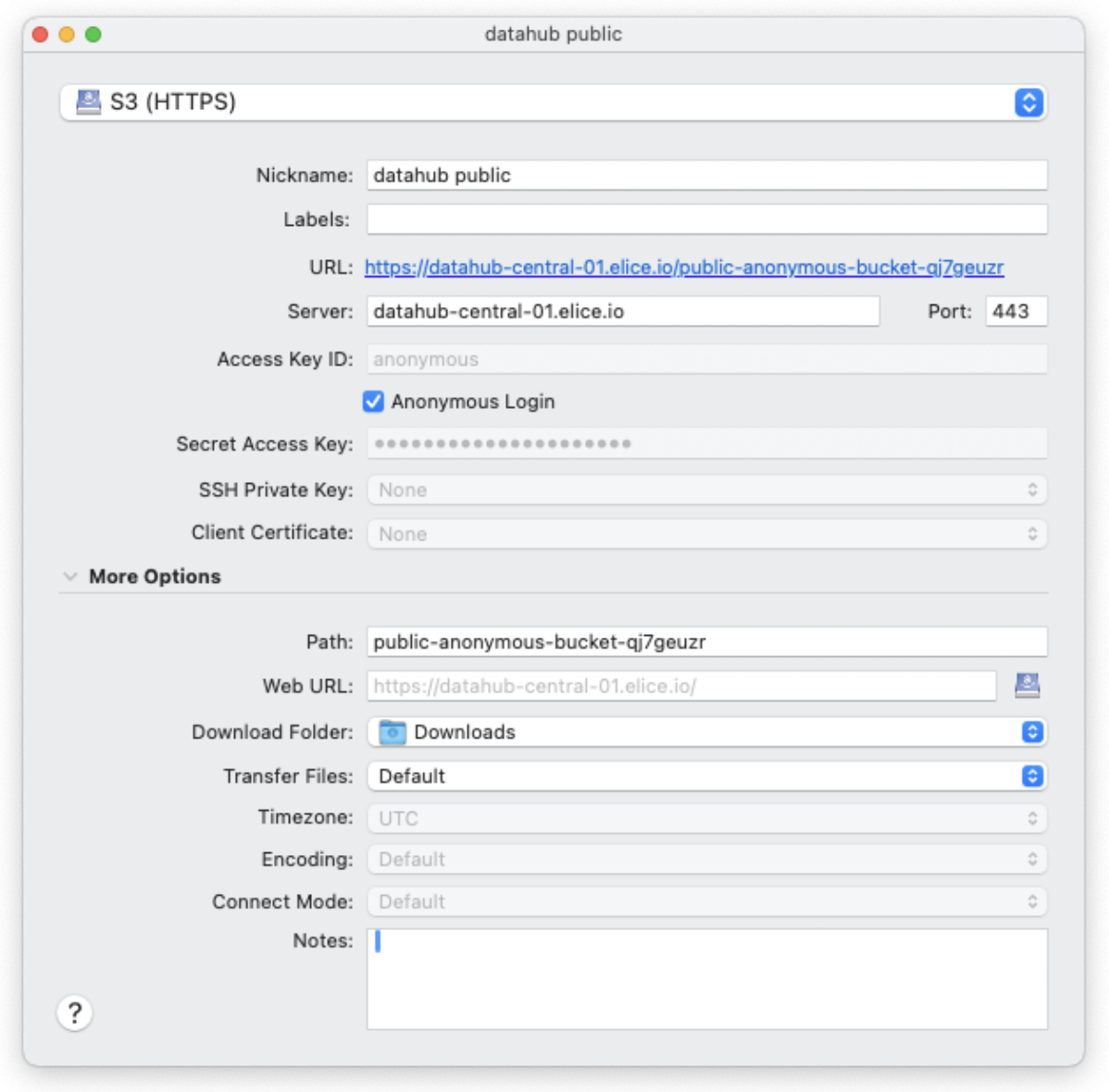
Click the "+" button to create a new connection, and select "S3 (HTTPS)" from the dropdown. (If options under "More options" don't appear, click the arrow on the left.) The connection fields are below. Use the values provided in your bucket connection guide.
- Server
- The URL of the server you want to connect to. Enter the value without the
https://prefix. - Use the "Endpoint host" from the bucket connection guide.
- The URL of the server you want to connect to. Enter the value without the
- Anonymous Login
- Check this only if the bucket allows anonymous access.
- If checked, no Access Key or Secret Access Key is required.
- Path
- Enter the "Bucket name" from the bucket connection guide.
For additional help, see the Cyberduck documentation: