Virtual cluster
Overview
A virtual cluster is an HPC environment in which multiple VMs are connected over a dedicated high-speed network fabric. It is used to relieve GPU-to-GPU communication bottlenecks in large-scale distributed training.
The flow is: create the cluster first, then attach VMs you've created separately to it.
Resource.VirtualCluster.CREATEpermission (attaching a VM also requiresResource.VirtualMachine.UPDATE)- VMs to be attached must be in the same zone and have the same instance type as the cluster
- A cluster needs at least two VMs to start
Fabric type
A virtual cluster supports two network fabrics.
| Fabric | Description |
|---|---|
| InfiniBand | A dedicated high-speed network on the InfiniBand protocol. For workloads that need the lowest latency and the highest bandwidth |
| Ethernet (RoCEv2) | A dedicated high-speed network using RoCEv2. Prioritizes compatibility with Ethernet-based environments |
Which one to use depends on workload requirements and which instance types are available.
Step 1: Create the cluster
- Go to Compute > Virtual Cluster.
- Click the Create Virtual Cluster button in the top right.
- Configure the following:
| Field | Description |
|---|---|
| Cluster Name | An identifying name |
| Availability Zone | The zone the cluster will run in |
| Instance Type | The instance type for cluster members |
| Fabric Type | InfiniBand or Ethernet (RoCEv2) |
- Click Create.
The newly created cluster starts out empty. Member VMs are created separately and then attached.
Step 2: Attach VMs
VMs added to the cluster must be created with the same zone and same instance type.
- In Compute > Virtual Machine, create a VM to use as a member, or open an existing one.
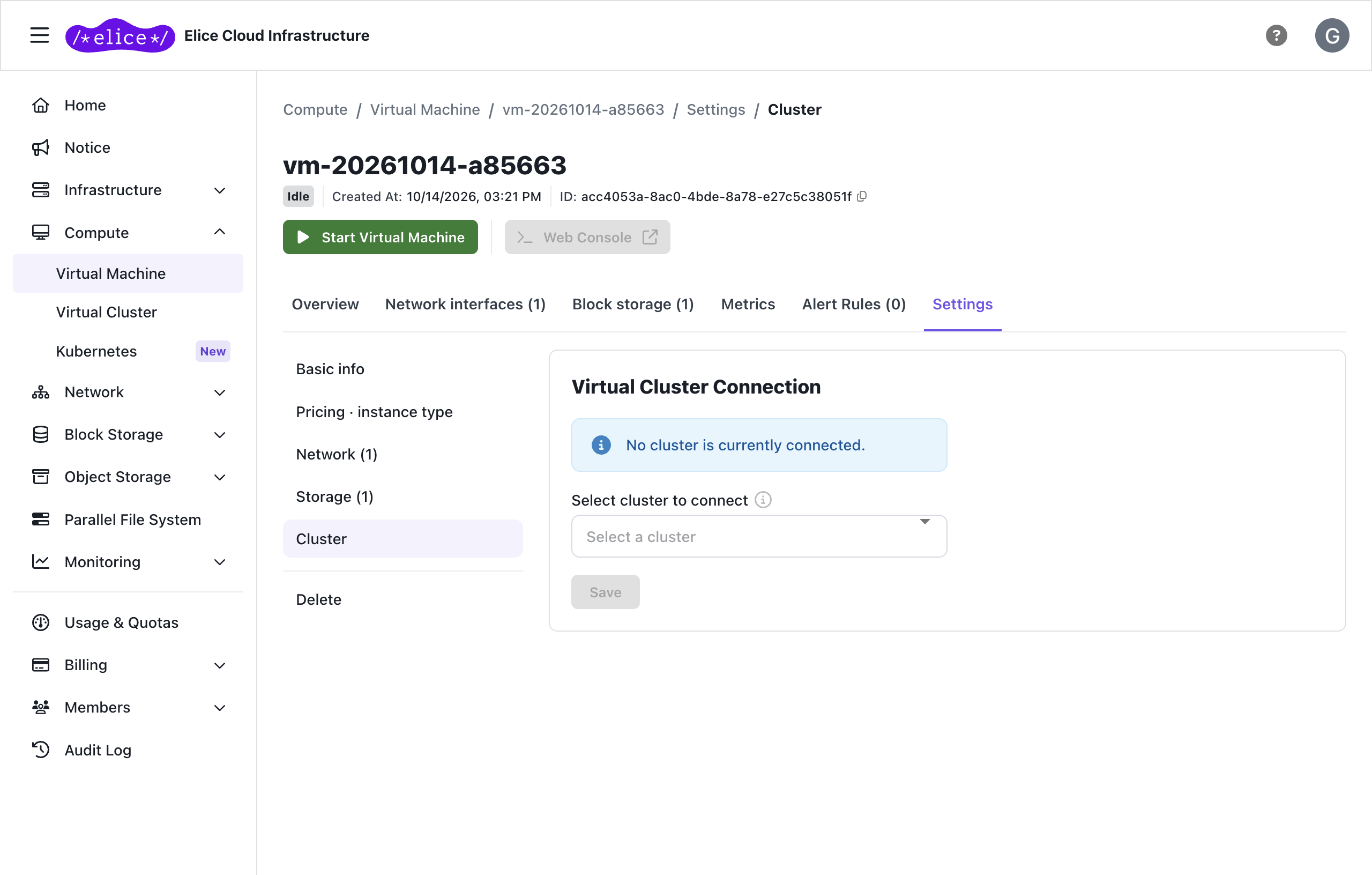
- Go to the Settings tab > Cluster on the VM detail page.
- Under Select cluster to connect, pick the cluster and click Save. Only clusters in the same zone are listed.
To detach, choose Disconnect from cluster in the same section and save.
To attach or detach several VMs at once, open the Connected VMs tab on the cluster detail page, click Connect VM, and select the VMs.
A VM can only be attached when it is in the Idle state (the portal shows: "Only virtual machines in the same instance type and stopped state can be connected or disconnected."). Spot and disaster recovery (DR) VMs cannot be attached to a cluster.
Step 3: Start the cluster
Once all member VMs are attached, start the cluster.
A cluster with fewer than two attached members cannot be started; the portal will show "At least 2 virtual machine allocations are required to start the cluster."
- Pick the target cluster in Compute > Virtual Cluster.
- On the detail page, click Start Cluster.
- Once the status changes to Running, start the individual member VMs.
To stop, click Stop Cluster. All running VMs must be shut down first.
Cluster states
| State | Meaning |
|---|---|
| Preparing | Provisioning |
| Unallocated | The cluster is created but no resources are allocated |
| Allocated / Idle | Resources are allocated but not yet running |
| Running | The cluster is operating |
| Terminated / Deleted | Terminated or deleted |
Cluster detail page
| Tab | Contents |
|---|---|
| Overview | Cluster name, fabric type, instance type, zone, allocation information |
| Connected VMs | List of member VMs and the state of each |
| Metrics | Cluster-level GPU, CPU, network, and memory usage |
| Settings | Delete the cluster. A running cluster cannot be deleted, and deleting it detaches its VMs |
Using InfiniBand
After the cluster starts, member VMs are automatically connected over the fabric. MPI-based distributed training uses this for GPU-to-GPU communication.
# Check InfiniBand devices
ibstat

# Multi-node PyTorch distributed training (torchrun) example
torchrun --nproc_per_node=8 --nnodes=4 \
  --node_rank=0 \
  --master_addr=<master-VM-IP> \
  --master_port=29500 \
  train.py
See InfiniBand setup and benchmark for detailed configuration and benchmarks.
Use cases
- Large-scale LLM pretraining: distributed training over tens to hundreds of GPUs
- Multi-node fine-tuning: faster gradient synchronization
- HPC scientific computing: MPI-based parallel simulation
Create member VMs on on-demand or reserved capacity.
Next steps
- InfiniBand setup and benchmark: how to validate performance
- Parallel file system: shared storage for multi-node training
- GPU ML training environment: from CUDA/PyTorch install to training