AI Chat
Using AI Helpy
Learners can receive the necessary help from AI Helpy during the learning process. Students can ask questions regarding the learning materials or code while progressing through their studies.
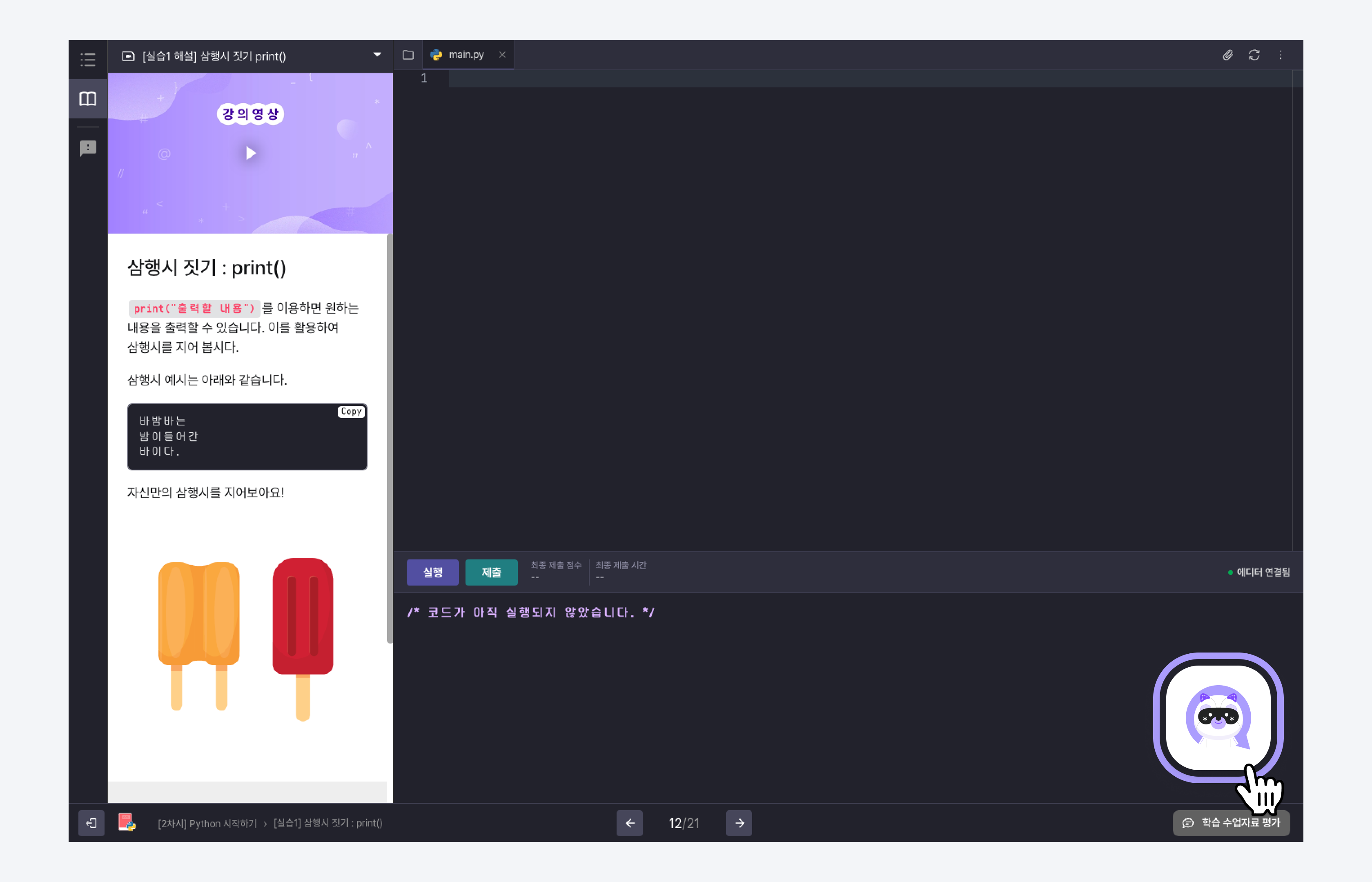
Accessing AI Helpy
Click the button located at the bottom right of the institution's LXP screen to access the community. You can start a conversation with AI Helpy by clicking the floating button.
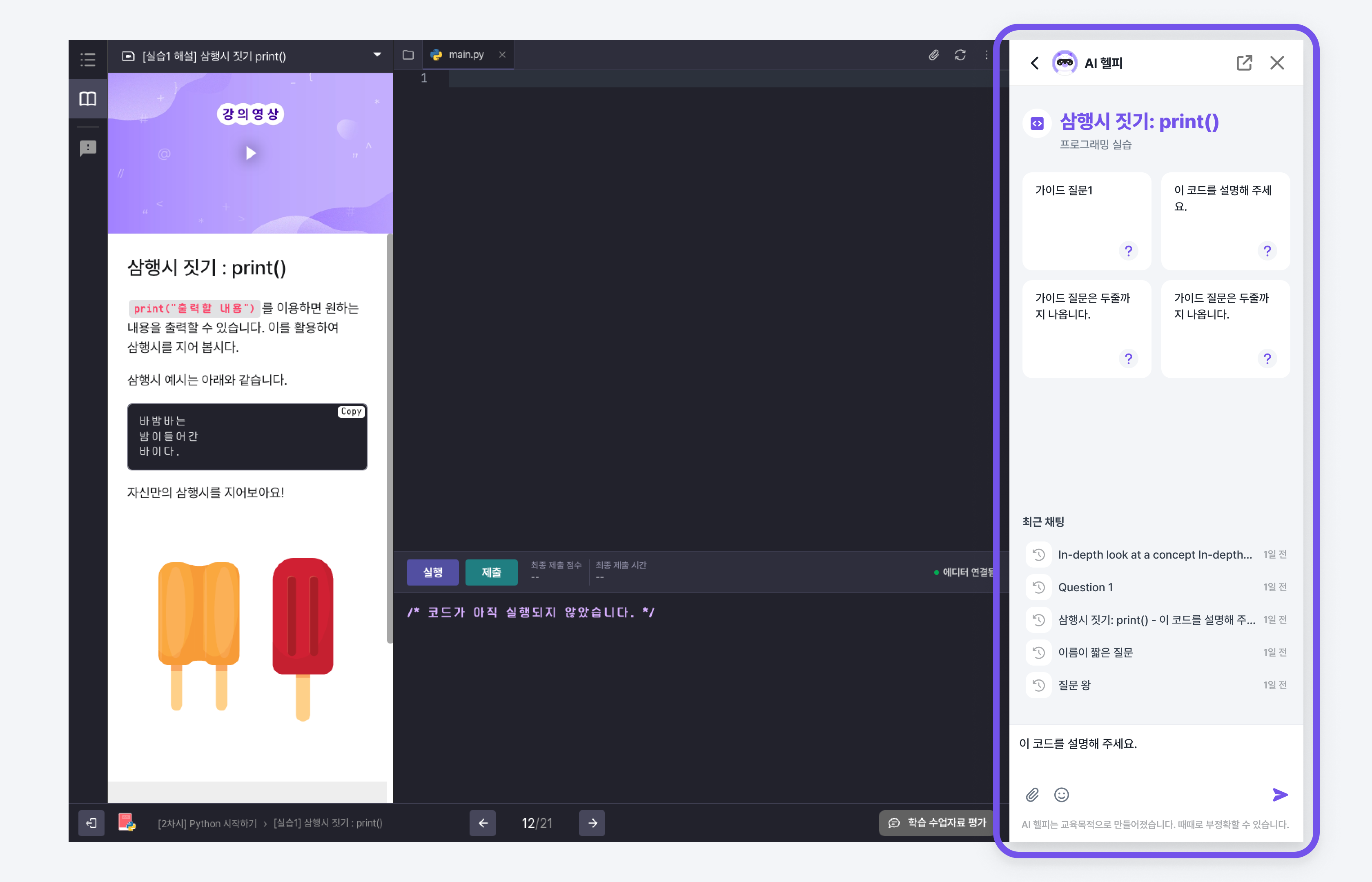
Asking Questions in AI Chat
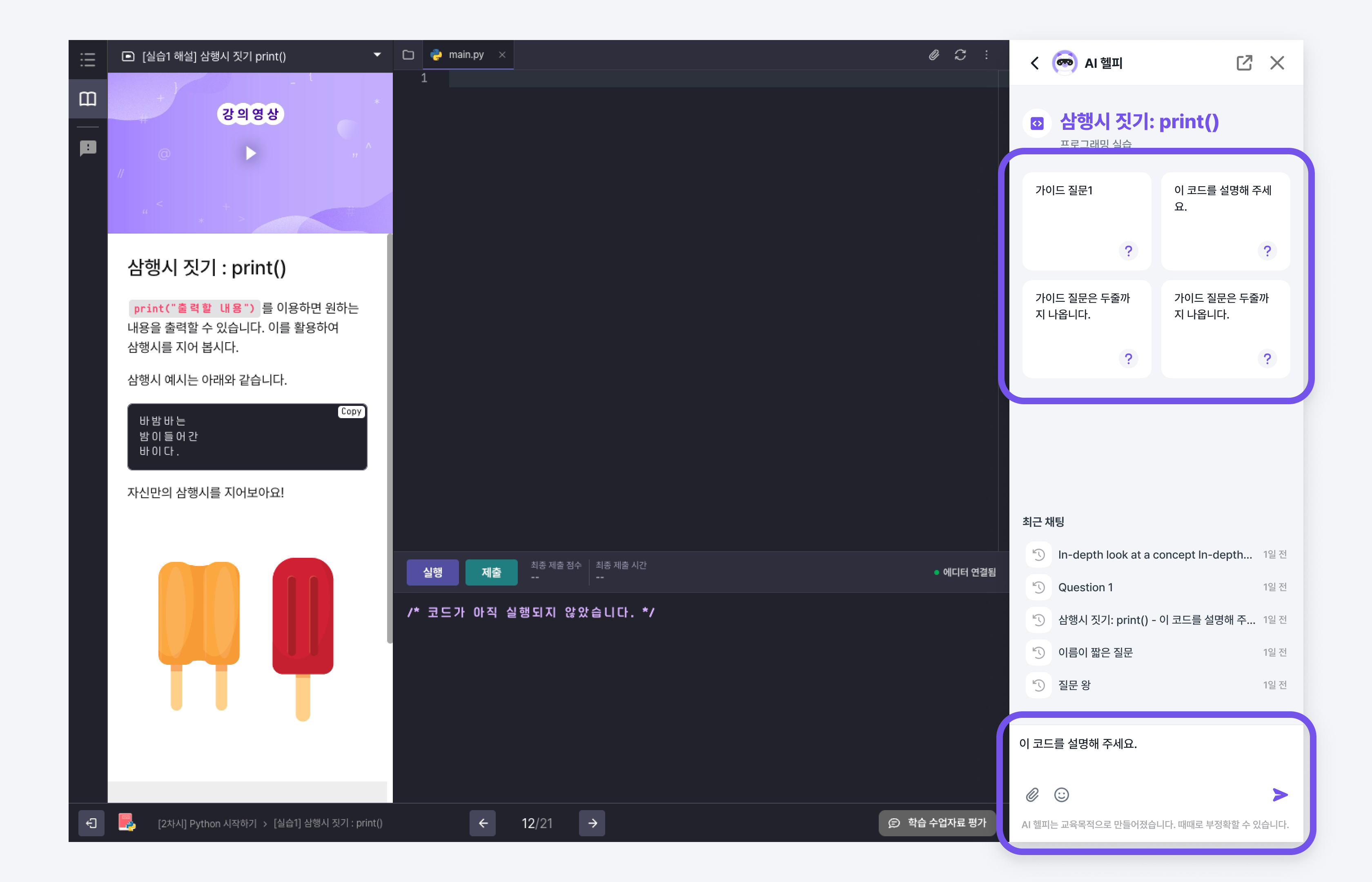
Once the chat with AI Helpy has started, you can ask your questions. You can also ask questions using the guided inquiries provided for each lesson material.
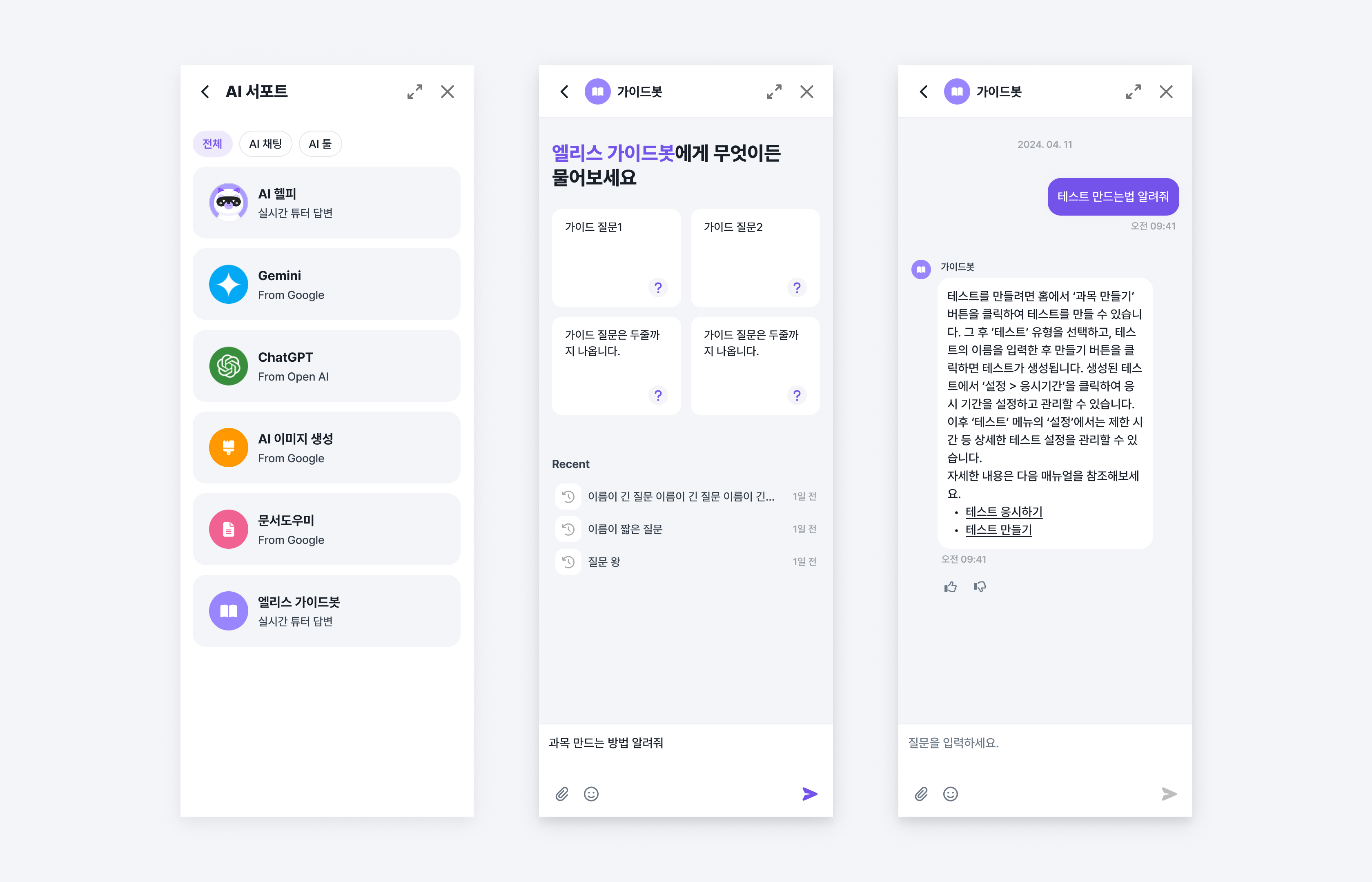
Elice Guide Bot
You can use the Elice Guide Bot to receive answers related to platform usage based on the Elice manuals.
Asking Questions
Click on the "Community Button" at the bottom right of the institution's LXP and then click the "New Chat" button. After that, you can start a conversation by clicking the "Elice Guide Bot" button.
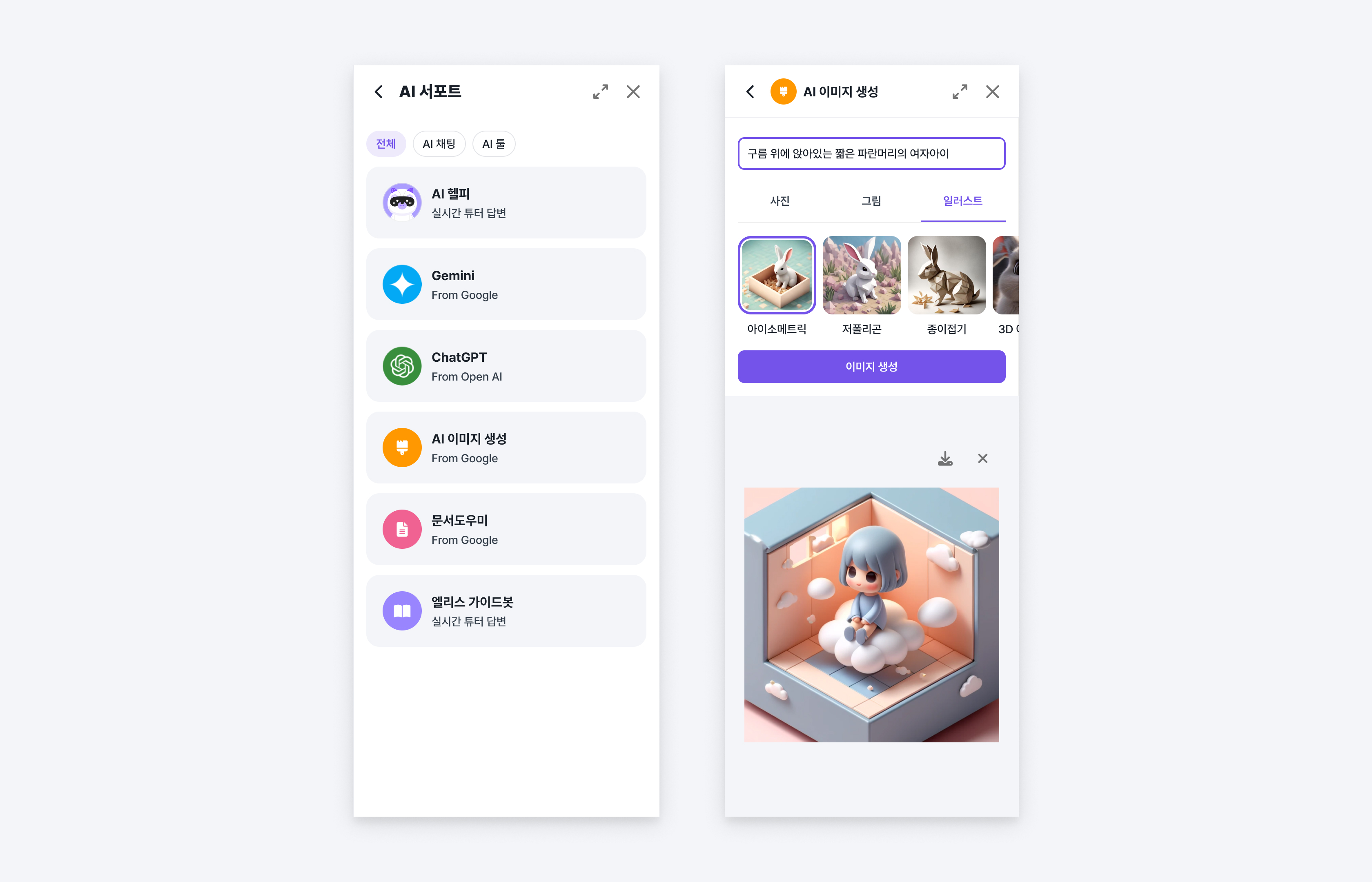
AI Image Generation
AI image generation is a machine learning model that generates images matching the input natural language description.
How to Use
Click the "Community Button" located at the bottom right of the institution's LXP and then click the "New Chat" button. After that, you can input prompts by clicking the "AI Image Generation" button.
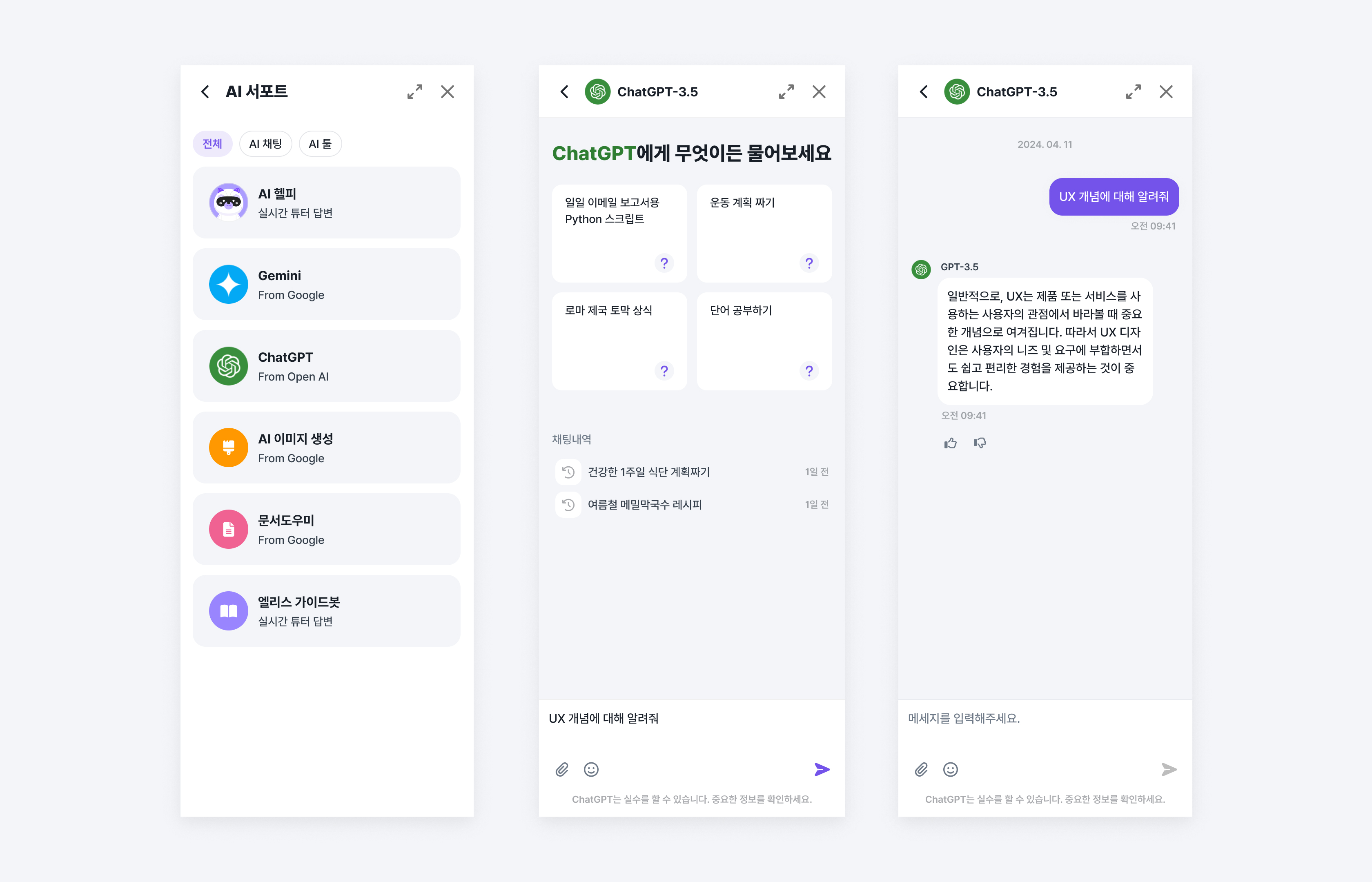
GPT-3.5
GPT-3.5 is a conversational AI language model developed by Open AI, which can be used within the Elice platform.
Asking Questions
Click the "Community Button" located at the bottom right of the institution's LXP and then click the "New Chat" button. After that, you can start a conversation by clicking the "GPT-3.5" button.
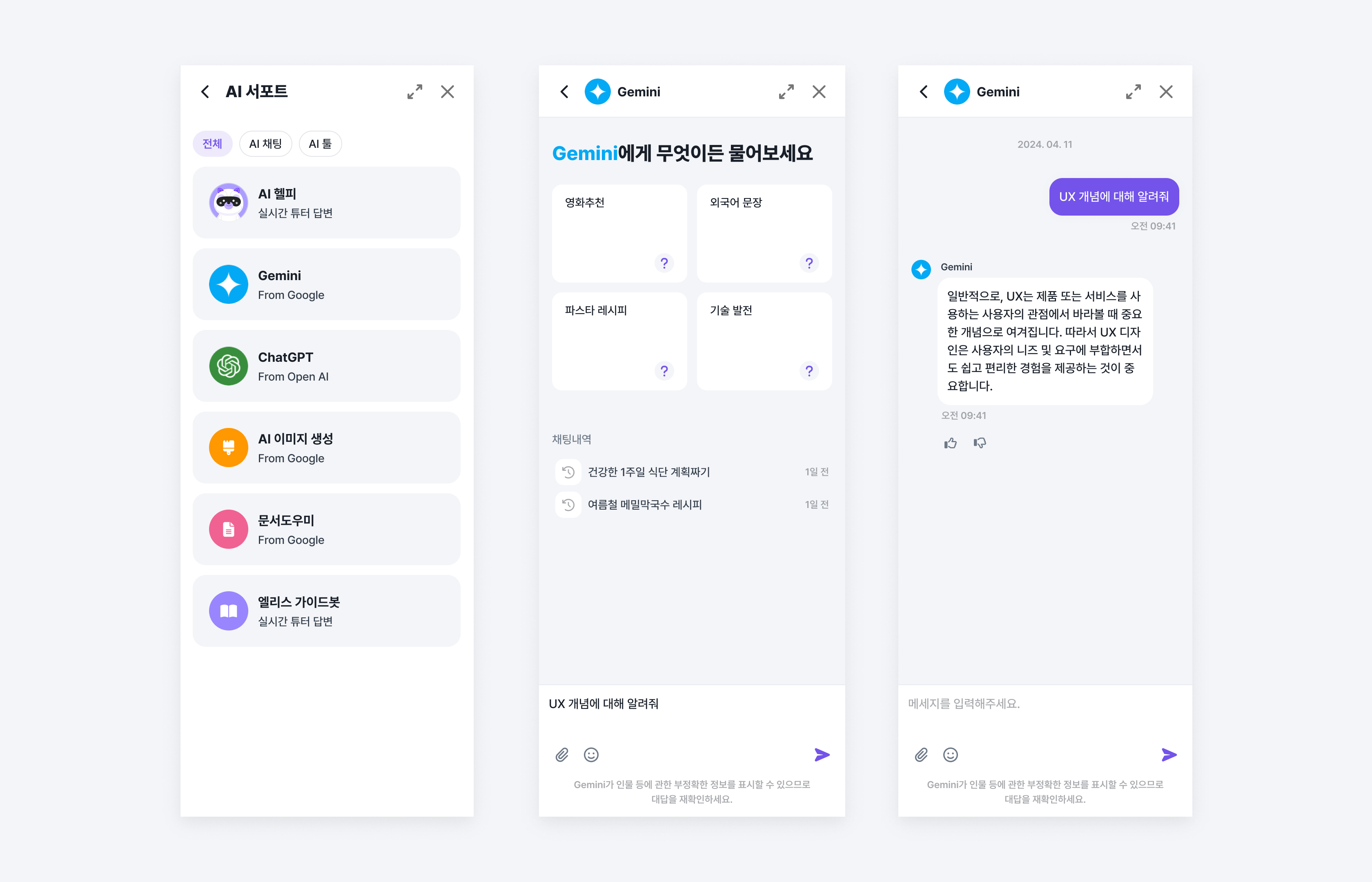
Gemini-1.0-Pro
Gemini-1.0-Pro is a conversational AI language model developed by Google, which can be used within the Elice platform.
Asking Questions
Click the "Community Button" located at the bottom right of the institution's LXP and then click the "New Chat" button. After that, you can start a conversation by clicking the "Gemini-1.0-Pro" button.
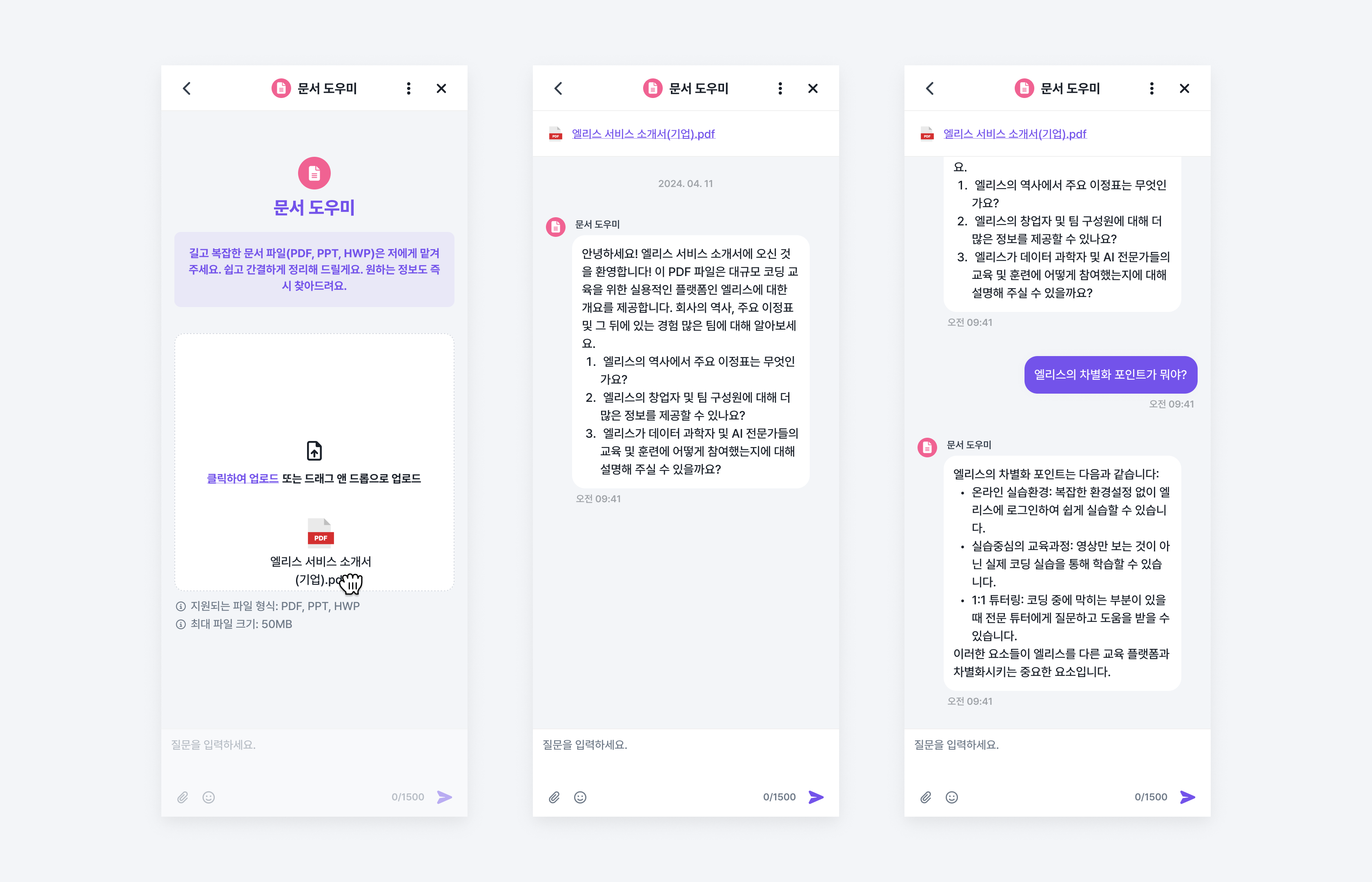
Document Assistant
With the Document Assistant, you can have Q&A sessions based on the content of PDF documents.
Asking Questions
Click the "Community Button" located at the bottom right of the institution's LXP and then click the "New Chat" button. After that, you can start a document-based conversation by clicking the "Document Assistant" button.
- Start chat by attaching the file you wish to question (PDF extension is required).
- You can receive answers based on the content of the document when you ask your questions.